

Copilot Studio
Microsoft Copilot Studio connects to Stackyapper as a remote Model Context
Protocol (MCP) server using the signed-in user’s existing workspace
permissions, and Stackyapper checks access again before every request.
Before you start
- You can edit the target agent in Microsoft Copilot Studio.
- Generative orchestration is enabled for the agent.
- Your Stackyapper workspace has one healthy app connection.
- The person testing has permission to use at least one read-only tool.
- You can complete Microsoft sign-in and Stackyapper consent in a browser.
Use the Stackyapper MCP URL shown in your portal. The default URL is:
https://mcp.stackyapper.dev/mcp
Workspaces with a verified custom access
domain use the origin shown on the portal’s
AI clients page, keeping the
/mcp path.Add Stackyapper with the MCP onboarding wizard
- Enable generative orchestrationOpen the agent’s Settings → Generative AI → Orchestration settings, select Yes, and save. Microsoft requires generative orchestration for MCP tools.
- Open the MCP onboarding wizardOpen the agent’s Tools page. Select Add a tool → New tool → Model Context Protocol.
- Enter the server detailsName the server Stackyapper. Enter a direct description such as “Search and run the business-system operations this user is permitted to access through Stackyapper.” Use
https://mcp.stackyapper.dev/mcpas the server URL. - Use OAuth (dynamic discovery)Select OAuth 2.0, then Dynamic discovery. Copilot Studio uses the server’s OAuth discovery metadata and dynamic client registration; you do not need to publish a client ID or secret.
- Sign in and grant consentComplete Microsoft sign-in, then review the Stackyapper consent page. Verify the intended workspace and approve the connection.
- Bind the connectionIn the connection manager, select the connected Stackyapper account for the MCP tool. Save the agent, then start a fresh test session so the new orchestration and connection state are used.
Microsoft documents the current wizard and Dynamic discovery choices in
Connect your agent to an existing MCP server.
Whether the agent also uses Web Search or allows ungrounded responses is an
agent authoring choice, not part of the Stackyapper connection — see
Microsoft’s Copilot Studio
documentation.
Those settings shape how Copilot finds information; Stackyapper workspace
permissions still decide which tools and records the agent can use.
Test a read-only request
Start a fresh test conversation and adapt this prompt to an app and record type
your user can read:
Using Stackyapper, find a read-only operation for [app] that can list [record type]. Return no more than five records. Do not create, update, delete, execute, or otherwise change provider data.
Open the activity map and verify this sequence:
stackyapper_search_toolsfinds a tool the signed-in user can use.stackyapper_get_tool_schemasloads the information that tool needs.stackyapper_execute_read_toolruns the read-only request.

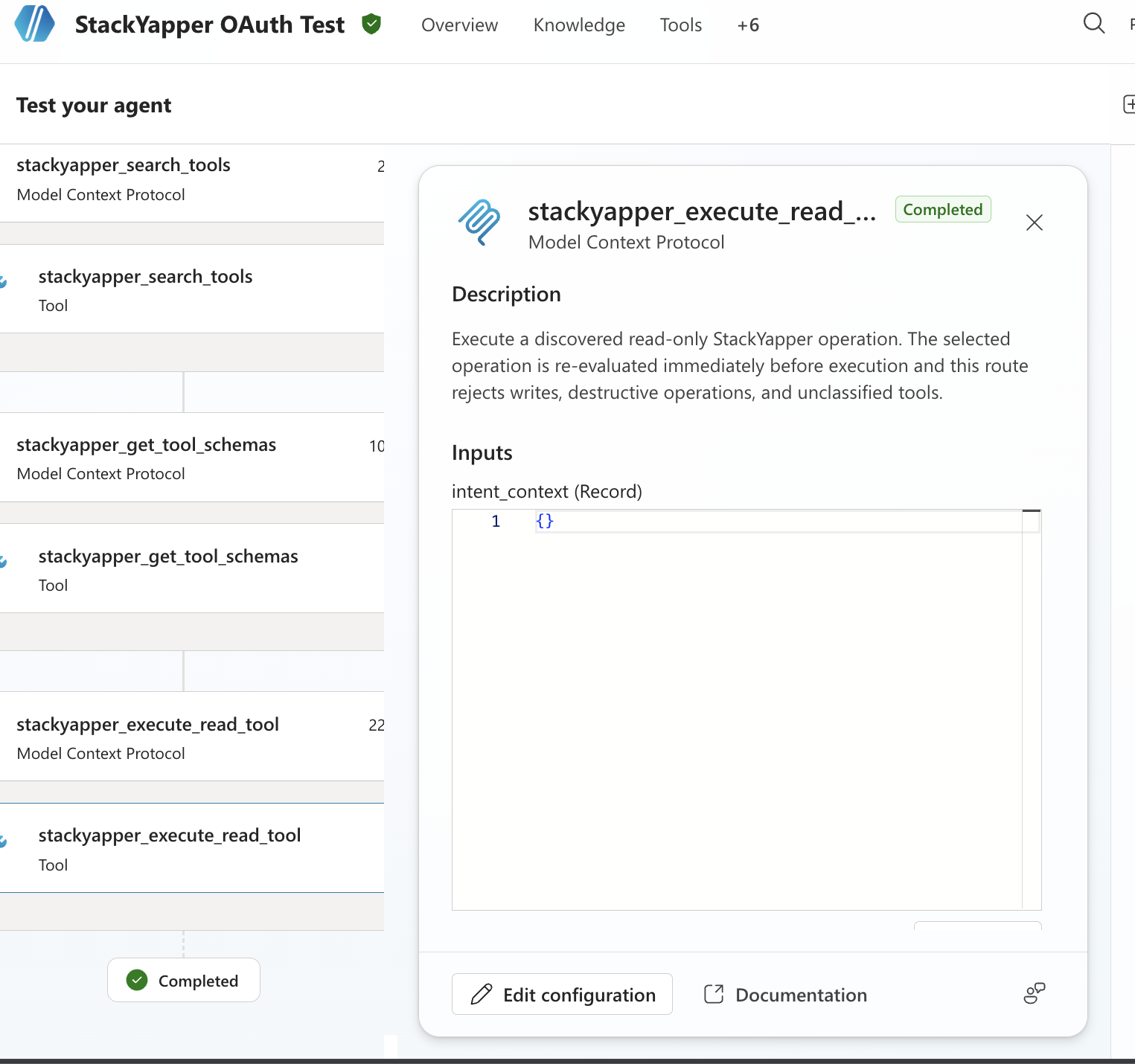
The activity map shows the three Stackyapper steps to look for when testing your
connection. Microsoft explains how to inspect the plan, inputs, outputs, timing,
and errors in Review agent activity.
Copilot Studio receives the standard router surface — a small set of
stackyapper_ tools, explained in What your AI client
sees.Verify the Stackyapper audit event
In the Stackyapper portal, open Audit in the same workspace. Match the recent
event by time, user, Copilot connection, app, action, result, and approximate
duration. The audit log records how Stackyapper was used without storing the
request details or data returned by the connected app.
Troubleshooting
| Result | Check |
| The MCP server cannot be added | Confirm the /mcp URL and select OAuth 2.0 → Dynamic discovery. |
| Sign-in succeeds but the tool is unbound | Select the Stackyapper account in the connection manager, save, and start a fresh test session. |
| No Stackyapper operation is selected | Confirm generative orchestration is enabled and make the server description specific. |
| Search returns no permitted operations | Ask a Stackyapper administrator to check app enablement and group or user grants. |
| The provider read fails | Repair the provider connection in Stackyapper and repeat the read-only test. |
Before sharing screenshots, hide workspace and customer names, user details,
records, browser URLs, and any sign-in or OAuth values.