

Audit and investigation
Audit shows owners and admins who used which app, through which AI
client, and with what outcome. It does not store the request details or data
returned by the connected app.
Read outcomes
- Successful: Stackyapper authorized the call and the app completed it.
- Denied: a Stackyapper access or confirmation check rejected the call.
- Error: Stackyapper could not complete or deliver the call’s result. A change may still have completed in the app if the response was lost.
Use the Outcome filter to show only Successful, Error, or Denied
events. Rate-limited calls remain Error events and display Rate limited
in the list.
Open an event to see its reason and next step. When recorded, details identify
whether the failure came from Stackyapper or the connected app, show the app’s
HTTP status, and show how long it asked you to wait from the event time. A missing
wait time means no retry delay was recorded.
- For a rate limit, wait before retrying.
- For Reconnect required, reconnect the selected app account.
- For Access denied, ask an administrator to review access to the action.
- For an invalid request, correct the inputs using the action’s instructions.
- For a conflict, review the record’s current state.
- After a timeout or connection problem during a change, check the app before retrying so you do not repeat a change that already completed.
Older events and failures without a recognized cause may show Tool execution
failed. Audit does not retain app error bodies, request inputs, or returned app
content. Failure details do not authorize another call or automatically retry it.
An empty result does not prove that no activity exists outside the selected
workspace, customer, date, or filters.
Retention
Audit history is retained for 90 days on Standard (and on the free tier) and 365 days on Business.
A retention override can also be set for a workspace; the
portal shows the effective retention window for a selected workspace. When an MSP
views all customers together, it shows the range of workspace retention policies;
each event remains subject to its own workspace policy. Date presets include the
longest retention window in that authorized view.
Managed customer workspaces inherit the managing account’s plan.
Search activity
Type in the search box (Search person, app, action or event…) and select
Search to search names, email addresses, apps, tools, clients, and event IDs
across the selected retained history. It searches all matching records, not
just the first page. For one person, open Filters, type in Find a person,
select their name and email from Person, then select Search. People with
the same name are listed separately.
Event times are shown in each viewer’s local time zone; the From (UTC) and
To (UTC) date filters use UTC days. The page starts with a 30-day range; use
Date range or the date filters to investigate older retained activity. MSP admins with access to managed
customers can also select a customer. The page shows the applied range, total
matches, and how many events have loaded. Load more continues the same view
in pages of 100, newest first.
The retention period and available history are different: a 365-day policy does
not create records from before collection began. Managed customer overrides can
also affect which records remain available.
Search audit history from an AI client
Workspace owners and admins can discover
stackyapper_search_audit_events through
the tool catalog and execute it through stackyapper_execute_read_tool. Ask your AI
client to find audit events for a person, app, or date range. The call checks your
current workspace membership and administrator role each time; being connected
to an AI client does not grant audit access.The response includes recorded failure facts and the next step shown in Audit
when available, alongside event and trace identifiers for investigation. CSV
exports include these facts in separate columns.
The tool accepts these filters:
| Filter | Use |
q | Search text, including person name or email, app, tool, client, or event ID; up to 200 characters. |
user_id | Select one recorded person by ID. |
customer_id | Select a managed customer within your authorized scope. Customer admins remain limited to their own workspace. |
from, to | Set the date range; the default is the last 30 days. Retention still limits available records. |
service, tool, client | Filter the app, operation, or recorded client. |
status | success, error, or denied. |
risk_class | read, write, destructive, or credential_sensitive. |
limit | Request 1–50 events per page; the default is 25. |
cursor | Continue using the previous response’s pagination.next_cursor. Keep the same filters when continuing. |
For example, search recorded access for one person without retrieving business
content:
{ "tool_name": "stackyapper_search_audit_events", "arguments": { "q": "Alex", "status": "denied", "limit": 25 } }
Results include safe event metadata in
events, a total_matching count, the
applied date filters, retention details,
and pagination.has_more / pagination.next_cursor. A page is not the whole
history when has_more is true. Arguments, returned app content, raw provider
errors, and IP addresses are excluded. This search does not export audit history
or change the Business CSV export entitlement.Inspect an event
Select View details beside an event to see its recorded identifiers, actor, app,
connection, tool or action, outcome, risk, client, execution origin, trace, and
timing. Older records may say Not recorded for fields added later.
Client-reported names and versions help investigations but do not prove which
application or person controlled the client. Use the saved person and connection
identifiers to distinguish similarly named records. After an account is deleted,
its previous identity may no longer be available.
Routine errors use standardized reasons. Historical request details and complete
provider error bodies are not shown. Depending on workspace notification settings,
network context may be stored in full, truncated, or omitted. See
Notifications for the client-address control.
Verify a first call
After a first connection or any material permission change, run one harmless
read-only tool call as the affected user, then confirm it in Audit.

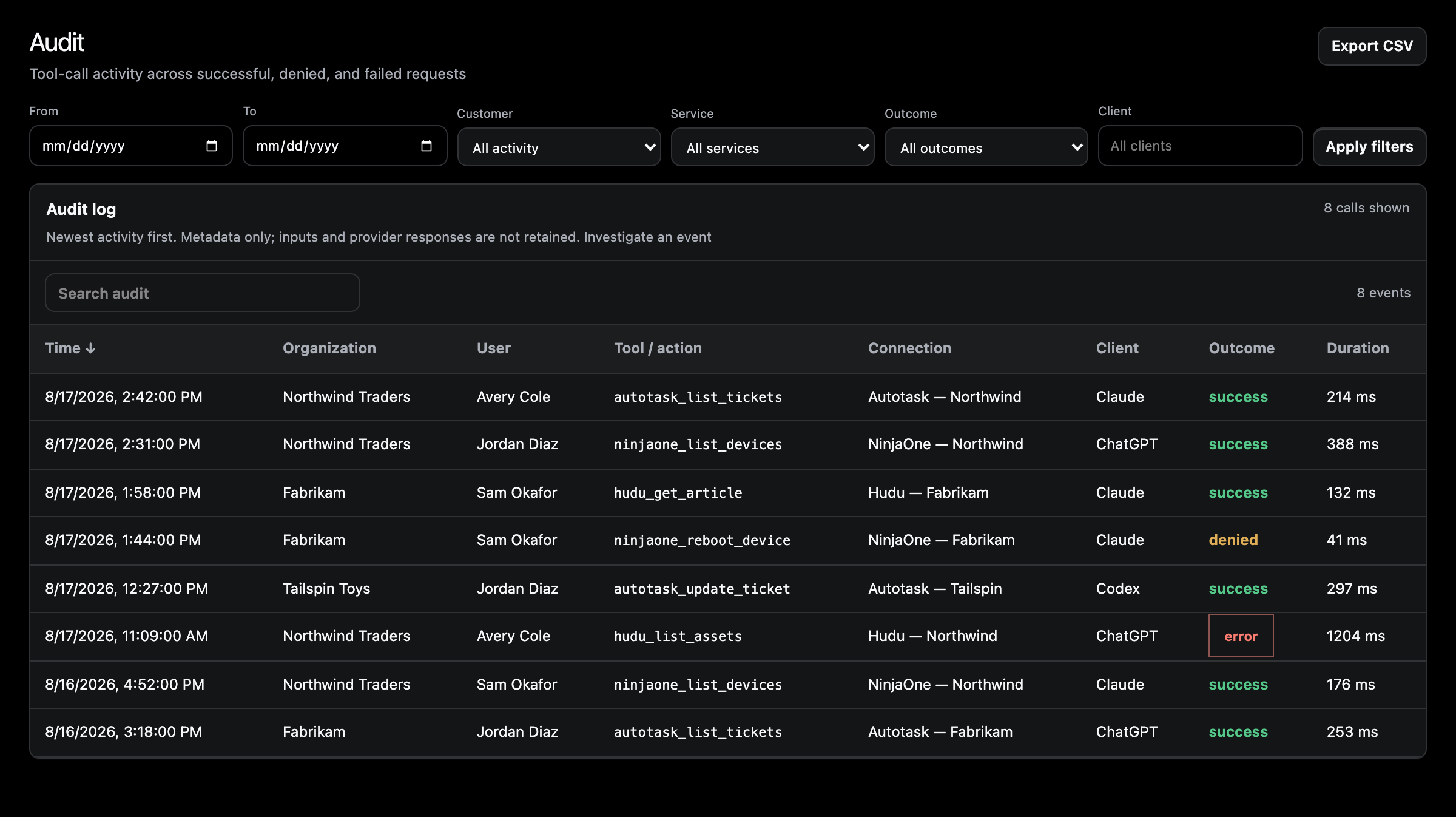
Every row names the actor, the tool, and the connection it ran through.
Arguments and returned data are not recorded, which is why a denied row
tells you a restriction held but not what was asked for.
- Open Audit after completing the read.
- Confirm the workspace and approximate time.
- Confirm the person, app, and tool.
- Confirm the outcome.
- Select View details and confirm the AI client and duration.
When contacting support about a specific call,
include the details shown on the audit entry—workspace, app, tool, actor,
outcome, and time. Request and result identifiers, when present, are shown on
the audit entry detail.
Investigate a denied call
Check:
- Whether the app is available and connected.
- The user’s effective group and direct policy.
- Explicit tool restrictions.
- Whether confirmation was required but not completed.
- Whether the call was made in the intended workspace.
Do not broaden an entire app grant until you identify the exact missing tool.
Investigate an error
Open the app first if its state is Needs attention. Otherwise compare the
Audit timestamp with the provider’s own service health and authorization logs.
Retry only with a harmless read until the connection is healthy.
Export
Workspace CSV export requires an owner or administrator with the Business plan’s
export entitlement. A person's own-record export has a separate access policy.
Apply your filters, then select Export CSV. The download uses the applied
search, person, customer, dates, and other filters. It retrieves all pages of the
selected snapshot rather than stopping silently at 10,000 records. New activity
arriving during the download is left for your next export. You can cancel while
it runs. A failed or cancelled download does not save a partial file.
Browser exports are limited to 64 MB. For a larger investigation, export separate
shorter date ranges and keep them together. Older direct-download and individual
person export links require narrower dates when more than 10,000 records match;
they return an explicit error instead of an incomplete file.
The CSV includes event and person IDs, UTC time, organization, person name and
email where available, role, app, connection, tool or action, client, outcome,
duration, risk, origin, trace, and standardized error information. Values that
could be interpreted as spreadsheet formulas are escaped. Export initiation is
recorded; it is not proof that a recipient saved or reviewed the file.
Store exports in an approved location with access restrictions and your company’s
retention policy. Stackyapper’s retention settings do not delete downloaded copies.
Evidence for business reviews
Audit supports investigations into activity routed through Stackyapper, access
denials, and recorded administrative changes. It does not provide a complete
history of actions taken directly in another app or identify every document or
ticket returned by an app. It does not retain raw prompts or returned app content.
Authentication history is not a complete tenant sign-in log.
Use these records alongside your identity provider, connected apps, incident
records, and documented review procedures. Requirements depend on your systems,
contracts, and applicable rules. For example, NIST leaves audit retention to the
organization’s requirements; HIPAA’s six-year rule concerns required compliance
documentation and should not be read as a universal six-year raw-log rule.
See NIST audit controls and
HHS Security Rule guidance.
The audit database is not an independently locked archive. This feature does not
include legal holds, a complete authentication lifecycle feed, or a guarantee
that all activity has been captured without loss. If your review requires a
protected archive, a longer preservation period, or provider-native audit events,
arrange those controls separately. A retention period or CSV export alone is not
compliance certification.
Sensitivity labels
The Tool sensitivity column on a person's or workspace's Sensitive
actions tab combines the operation’s risk level (read, write, or destructive)
with its data-sensitivity labels. Use the information icon beside the column
heading for a short explanation.
| Label | Meaning |
| PII | Personal information, such as names, emails, or phone numbers. |
| Secrets | Credential-related data, such as passwords, API keys, or tokens. |
| Financial | Billing and money data, such as invoices, payments, refunds, prices, or taxes. |
| Tenant admin | Directory and administration data, such as users, groups, roles, permissions, or tenants. |
| External send | Sends, posts, or publishes an email, SMS, message, webhook, or notification. |
These labels classify what a tool may handle. They can come from reviewed
operation declarations, classification rules, or overrides. They are not findings
from scanning the actual request or response. A Secrets label does not prove
that a password was returned, stored in the audit log, or exposed. Likewise, a
successful call describes execution outcome, not a data-leak finding.
For example, a member-search tool can carry both PII and secrets labels
while its primary risk remains read. The labels alone do not identify which
fields were returned by an individual search. Confirmation is shown separately:
Not required means that call did not require confirmation, not that its data
was classified as non-sensitive.
Source sensitivity and returned data
A tool classification may describe source data, input fields, or capabilities.
It does not describe the contents returned by a specific execution. A tool can
filter its output to leave out sensitive source fields and still keep its
cautious sensitivity labels, so access policy continues to treat it carefully.
For example,
cw_search_members returns only the member ID, license class,
inactive flag, daily capacity, utilization-reporting flag, and timesheet-entry
flag. Names, contact details, security roles, and credential fields are left
out, but the tool keeps its PII and secrets labels because the
ConnectWise data it reads contains them. This describes how the tool currently
works, not what a specific past call returned.A missing label is not proof that data is non-sensitive. Labels never mean
that information was detected, returned, filtered, or exposed by a particular
call.